
These are the Updates You Are Looking For

This article was originally posted September 2009 on my old blog blogs.technet.com/ad which I handed over to Alex Simons years ago. I wrote it to help Active Directory admins gain a better understanding of how AD replication works so they could catch problems or fine-tune AD update convergence. Of course, the reference to Microsoft Operations Manager (MOM) is a dead giveaway to the fine aging of the article.

I think the information in this article is still relevant for AD admins now, but it is also incredibly useful information for security architects, consultants, and analysts.

As I mentioned in my last article, Active Directory continues to be a target for bad actors. The security industry therefore concentrates endpoint security on the domain members (workstations, servers) and domain controllers in the environment. And rightly so! AD is where an attacker will be trying to glean info about an environment to begin lateral movement and possible elevation to the cloud.

Why not simply review the directory itself rather than the audit or other event logs? AD replication metadata can only be overwritten by later updates. So, if there is missing log data at least there is still that forensic thread to unravel.

The directory may have some evidence in terms of what has been updated. Each update of an attribute requires detailed tracking to ensure that the entire directory (all domain controllers) gets the update. That tracking is metadata describing which attribute(s) where changed, on which DC, the version of the attribute which is incremented each time an update is applied, and when it was changed. This data alone can provide key insights, but gains solidity when combined with secure channel information or audit information. When you add in data from other sources then a more holistic and clearer picture can emerge.

Which data? Attributes like password unicodePwd, Kerberos servicePrincipalName, group memberof. Bad actors could do things like change a password, add SPNs, add user or group members, and other things which would leave a trail of forensic information in the AD replication metadata. Not only AD replication convergence can be tracked using these techniques. A savvy security practitioner could track individual updates to specific attributes on specific AD objects.

This article can help you follow that trail. Read below to find the updates you are looking for.

In this blog post we’re going to go over a few techniques that are a bit old school but will come in handy for understanding how things work even if you ultimately use a great monitoring suite like MOM. Now, there are great articles here and here that describe good general ways to start checking your AD replication-and the information on those articles still applies. In this post we’re going to go a bit past and to the side of them though.

Before we go further, we need to go over USN Highwater-marks and Up to Dateness vectors and how they are used. In my experience these are the two data points in tracking updates that are the most confusing in Active Directory replication.

Of course, USNs are Update Sequence Numbers and are an ever-increasing counter of numbers assigned to updates-unique per domain controller. As updates are received from peer replicas, or as updates originate at that domain controller itself, the next USN in the series is used to signify that update. In other words USNs are local numbers on each DC. However, those local USNs are monitored by peer domain controllers who look at what the most recent and highest number USN was in order to help decide whether or not some of those updates are needed to be replicated in. If they are not needed then they can be discarded…which is what propagation dampening is.

A recent supportability article had excellent explanations of up-to-dateness vector and high-water mark which I’m pasting below:

For each directory partition that a destination domain controller stores, USNs are used to track the latest originating update that a domain controller has received from each source replication partner, as well as the status of every other domain controller that stores a replica of the directory partition. When a domain controller is restored after a failure, it queries its replication partners for changes with USNs that are greater than the USN of the last change that the domain controller received from each partner before the time of the backup.

The following two replication values contain USNs. Source and destination domain controllers use them to filter updates that the destination domain controller requires.

  1. Up-to-dateness vector A value that the destination domain controller maintains for tracking the originating updates that are received from all source domain controllers. When a destination domain controller requests changes for a directory partition, it provides its up-to-dateness vector to the source domain controller. The source domain controller then uses this value to reduce the set of attributes that it sends to the destination domain controller. The source domain controller sends its up-to-dateness vector to the destination at the completion of a successful replication cycle.
  2. High water mark Also known as the direct up-to-dateness vector. A value that the destination domain controller maintains to keep track of the most recent changes that it has received from a specific source domain controller for an object in a specific partition. The high-water mark prevents the source domain controller from sending out changes that are already recorded by the destination domain controller.

Let’s dig in with a scenario where you are the admin and you have noticed that there is a replication backlog at some AD sites. In this situation we have anecdotal complaints from our help desk where they see users created in New York have an hour or even occasionally days before those users show up on DCs in the Los Angeles site. Although it’s sometimes wise to take help desk reports with a grain of salt this isn’t something you want to ignore.

We have three sites-Los Angeles, Kansas City and New York-and we have DCs in each site. For the question at hand, we need to figure out whether there is, in fact, a replication back log and if so how big it is. Repadmin.exe, since it is the Swiss Army knife of AD replication tools, would be the first tool to use (repadmin /showrepl * /csv that is) however it is entirely possible to have a back log of updates between two replicas and not see constant or even intermittent errors from them if they are replicating-albeit replicating slowly.

Now let’s see why the USNHighwater-mark and Up-to-Dateness Vectors are important in tracking updates by using the command “repadmin /showutdvec < hostname> <distinguished name of naming context>”. To understand what is happening between the three DCs Server15 in LA, Server17 in KC, and Server12 in NY we will need to run the showutdvec command once on each server and then examine the results.

Ran on or against Server15:

LosAngeles\server15 @ USN 16531174 @ Time 2009-09-21 13:54:45

KansasCity\server17 @ USN 35282103 @ Time 2009-09-17 12:51:15

NewYork\server12 @ USN 1581572 @ Time 2009-09-21 13:54:39

Ran on or against Server17:

LosAngeles\server15 @ USN 16531174 @ Time 2009-09-21 13:54:45

KansasCity\server17 @ USN 36483665 @ Time 2009-09-21 10:54:41

NewYork\server12 @ USN 1581572 @ Time 2009-09-21 13:54:39

Ran on or against Server12:

LosAngeles\server15 @ USN 16531174 @ Time 2009-09-21 13:54:45

KansasCity\server17 @ USN 35295102 @ Time 2009-09-18 07:03:08

NewYork\server12 @ USN 1581572 @ Time 2009-09-21 13:54:39

Let’s take KC and NY and compare them:

KC LOCALLY:server17 @ USN 36483665

NEW YORK: server17 @ USN 35282103

Now subtract what NY knows of KC having versus what KC has as high-water mark:

36483665 minus 35282103 = 1201562

So, there is a difference of 1,201,562 updates between what the Kansas City server named Server17 has and what its peers think it has.

This tells us that Server17 has received (from some other DC not listed above) or originated approximately 1.2 million updates and that the LA and New York servers have not processed those updates yet. This also tells us that the KC DC Server17 is receiving inbound updates from the other two sites just fine.

That suggests a replication backlog, since the up-to-dateness vector (that USN number above) for Server17 which the LA and NY servers have retained for tracking locally are lower than the USN Highwater-mark which actually is on the KC server itself.

Are all of these updates ones that NY and LA actually need? Perhaps not-it simply depends on the nature of the updates.

More than likely propagation dampening will occur as the replicas try to process the updates from KC. Propagation dampening is the routine which assesses whether a received updated is needed by the local domain controller or not. If the update is not, then it is discarded. For those unneeded updates you would see an event like below following a similar event ID 1240 if you have your NTDS diagnostic logging for Replication events turned up:

9/20/2009 10:35:30 AM Replication 1239 Server15

Internal event: The attribute of the following object was not sent to the following directory service because its up-to-dateness vector indicates that the change is redundant.

Attribute:9030e (samaccountname)

Object:<distinguishedname of object>

Object GUID:d8frg570-73f1-4781-9b82-f4345255b68u

directory service GUID:9fbfdgdf66-3e75-4542-b3e7-2akjkj776b

That leads us to the question of how to find out more about what those updates are.

To do that we can issue an LDAP query against KCs DC Server 17 for all of the objects that have a recent WhenChanged attribute. To do that we first get the USNHighwatermark for the given partition from our showvector command above and subtract a number from it in order to display the most recent updates against that DC. In our scenario that would be 36483665, and we will subtract 1000 in order to query for the most recent 1000 updates.

  1. Open LDP.EXE.
  2. From the Connection menu select Connect and then press OK in the Connect dialogue that appears.
  3. From the Connection menu select Bind and then press OK in the Connect dialogue that appears.
  4. Next, click on the Browse menu and select Search.
  5. Enter the partition’s distinguished name in the BaseDN field (DC=<partname>,DC=com).
  6. Paste the following in the filter field: (usnchanged>=36482665)
  7. Select Subtree search.
  8. Click on Options and change the size limit to 5000.
  9. Still in Options add the following to the Attributes list (each entry separated by semicolon) to those already present: usnchanged;whenchanged
  10. Then click Run.

And here is a sample of our result set:

>> Dn: CN=Test134417,OU=Accounting,DC=treyresearch,DC=com

4> objectClass: top; person; organizationalPerson; user;

1> cn: Test134417;

1> distinguishedName: CN=Test134417,OU=Accounting,DC=treyresearch,DC=com;

1> whenChanged: 09/13/2009 15:11:26 Central Standard Time;

1> uSNChanged: 36483650;

1> name: Test134417;

1> canonicalName: treyresearch.com/Accounting/Test134417;

>> Dn: CN=Test134418,OU=Accounting,DC=treyresearch,DC=com

4> objectClass: top; person; organizationalPerson; user;

1> cn: Test134418;

1> distinguishedName: CN=Test134418,OU=Accounting,DC=treyresearch,DC=com;

1> whenChanged: 09/13/2009 15:11:26 Central Standard Time;

1> uSNChanged: 36483649;

1> name: Test134418;

1> canonicalName: treyresearch.com/Accounting/Test134418;

In this case, after a large sampling of all the most recent updates to occur on the KC DC, we see that someone or something is creating users named Test<number> in the Accounting OU.

Is it some provisioning software that the accounting department uses? A migration from another directory? What if the objects were of some other type, something unique enough to be immediately understood?

These are all questions that you can apply to a concern like this once you have an idea about those updates you are looking for.

Using KQL with Azure AD

Understanding Azure data and how it can be reviewed using Kusto Query Language queries is necessary for any security minded person. This blog post shows how KQL can be used to track newly synced identities for suspicious activity.

If you work with Microsoft cloud services very much you will have noticed that the service telemetry is often available using Kusto Query Language via Azure Data Explorer. The online documentation explains that Kusto Query Language is a powerful tool to explore your data and discover patterns, identify anomalies and outliers, create statistical modeling, and more. Kusto queries use schema entities that are organized in a hierarchy like SQLs: databases, tables, and columns. What is a Kusto query? A Kusto query is a read-only request to process data and return results. The request is stated in plain text, using a data-flow model that is easy to read, author, and automate. Kusto queries are made of one or more query statements.

KQL has been my favorite tool for years since it allowed me to identify service problems, gauge feature performance against desired results, and condense the information so that it made sense when put into a visual display like a chart. KQL allows for concise, quantifiable answers from large sets of data from one or more databases which can be tough to do using other methods.

As you would expect, KQL’s extensibility and ease of use is one reason it is used so much by Azure services. Another big selling point is how easy it is for a service to set up and use. KQL is prevalent throughout Azure due to that ease of ingesting service telemetry from Cosmos databases. Azure Cosmos DB in turn is the typical database used due to its versatility as a static data store for basic telemetry or as part of an event-driven architecture built with Azure Data Factory or Azure Synapse. KQL (via Azure Data Explorer or Azure Log Analytics) and Cosmos DB technologies fit together very well for a solution which can help handle large sets of data in a performant way and still allow for insights into service specific and even answer cross-functional questions. We’ll talk in a later blog about how important planning service telemetry is when creating a new software product or service.

Azure Sentinel provides KQL access for performing advanced analysis of activity from multiple sources combined with User and Entity Behavior Analytics (UEBA). If you are not lucky enough to have Sentinel Azure Active Directory by itself allows you to review tenant-specific telemetry using KQL once it is published to an Azure Log Analytics workspace (albeit without the UEBA analytics). The data alone can be useful for understanding what ‘normal’ looks like in your environment or in threat hunting. The steps to sending the telemetry to your workspace and configuring retention and other settings can be found at this link.

Now that we know KQL is used with Azure AD let’s go over how to use it with a few real-world security scenarios.

One of the better-known avenues for exploitation of Azure AD is via AD on premises. AD is 23 years old now and though Microsoft does a great job of security updates and recommended controls the fact is that the AD attack surface is very large-especially if organizations do not maintain good security posture. It is a large and attractive target which means it is important to review the actions of newly synchronized users.

KQL can be used to query Azure AD and identify newly synced users and what those newly synced users have changed recently. This is a simple technique to use if you have a suspicion or just want to do a spot check. For routine matters I highly recommend using a solution which uses machine learning or AI to sift through the data and identify suspicious activity.

Figure 1 Log Analytics query for interesting audit events. Blurring and cropping to protect the innocent. Query text at bottom of article.

The data is exportable for preservation and review. When reviewing note that there are three rows in the query which will indicate that a new user was synced and the identity of that new user: Actor, OperationName, and TargetObjectUPN. We can use the Actor field since Azure AD hybrid sync automatically creates an AD on premise identity named something with SYNC-HOST in the string. The other indicators are OperationName is AddUser and of course the TargetObjectName for the identity.

Note that if your organization uses another principal for their sync service account you could add a line to select only that service principal name in the query like | where Actor = ‘actorstring’.

KQL’s real power comes into play when you can combine two or more databases together and query that data to gain a broader picture of a scenario. This is essentially what Sentinel and other services do albeit with the added special sauce of behavioral analytics and scoring algorithms.

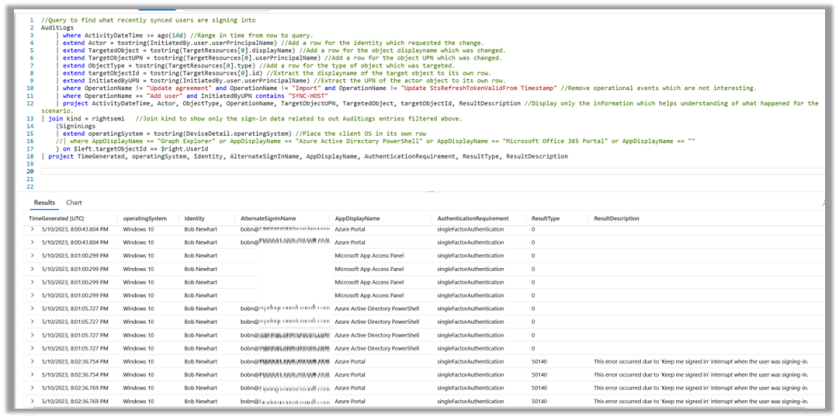
For example, if you have a suspect or suspects you can also see which SaaS applications the identity has signed into recently to help gauge their sketchiness by reviewing the AAD audit logs with the sign in logs for the same identities. In the example below we are not filtering on a specific identity-though we could add a where statement to do that-but are querying for what any user who has been recently added via sync is signing into. You can perform a more targeted search by removing the remark on line 16 and looking to see if they sign into specific applications. For example, a user signing into “Azure Active Directory Powershell” immediately after sync could mean shenanigans.

Figure 2 Log Analytics query for interesting signin events. Blurring and cropping to protect the innocent. Query text at bottom of article.

Understanding Azure data and how it can be reviewed using Kusto Query Language queries is necessary for any security minded person. It can help to better understand information which is already present by filtering out data which is not necessary, extract relevant information from results spanning multiple databases, or even spot trends or anomalies. The ability to construct KQL queries is a valuable skill, and hopefully one that this blog post will has helped you strengthen.

Audit Log query

AuditLogs

    | where ActivityDateTime >= ago(3d) //Range in time from now to query.

    | extend Actor = tostring(InitiatedBy.user.userPrincipalName) //Add a row for the identity which requested the change.

    | extend TargetedObject = tostring(TargetResources[0].displayName) //Add a row for the object displayname which was changed.

    | extend TargetObjectUPN = tostring(TargetResources[0].userPrincipalName) //Add a row for the object UPN which was changed.

    | extend ObjectType = tostring(TargetResources[0].type) //Add a row for the type of object which was targeted.

    | where OperationName != “Update agreement”
and OperationName != “Import”
and OperationName != “Update StsRefreshTokenValidFrom Timestamp”
//Remove operational events which are not interesting.

    | project ActivityDateTime, Actor, ObjectType, OperationName, TargetObjectUPN, TargetedObject, ResultDescription //Display only the information which helps understanding of what happened for the scenario.

Query to see what recently added users (via AAD Connect sync) have signed into

//Query to find what recently synced users are signing into

AuditLogs

    | where ActivityDateTime >= ago(14d) //Range in time from now to query.

    | extend Actor = tostring(InitiatedBy.user.userPrincipalName) //Add a row for the identity which requested the change.

    | extend TargetedObject = tostring(TargetResources[0].displayName) //Add a row for the object displayname which was changed.

    | extend TargetObjectUPN = tostring(TargetResources[0].userPrincipalName) //Add a row for the object UPN which was changed.

    | extend ObjectType = tostring(TargetResources[0].type) //Add a row for the type of object which was targeted.

    | extend targetObjectId = tostring(TargetResources[0].id) //Extract the displayname of the target object to its own row.

    | extend InitiatedByUPN = tostring(InitiatedBy.user.userPrincipalName) //Extract the UPN of the actor object to its own row.

    | where OperationName != “Update agreement”
and OperationName != “Import”
and OperationName != “Update StsRefreshTokenValidFrom Timestamp”
//Remove operational events which are not interesting.

    | where OperationName == “Add user”
and InitiatedByUPN contains
“SYNC-HOST”

    | project ActivityDateTime, Actor, ObjectType, OperationName, TargetObjectUPN, TargetedObject, targetObjectId, ResultDescription //Display only the information which helps understanding of what happened for the scenario.

| join kind = rightsemi   //Join kind to show only the sign-in data related to out AuditLogs entries filtered above.

    (SigninLogs

    | extend operatingSystem = tostring(DeviceDetail.operatingSystem) //Place the client OS in its own row

    //| where AppDisplayName == “Graph Explorer” or AppDisplayName == “Azure Active Directory PowerShell” or AppDisplayName == “Microsoft Office 365 Portal” or AppDisplayName == “”

    ) on
$left.targetObjectId == $right.UserId

| project TimeGenerated, operatingSystem, Identity, AlternateSignInName, AppDisplayName, AuthenticationRequirement, ResultType, ResultDescription

On Organizational Maturity and Cybersecurity

Malicious compromise is a profitable industry with constant innovation. This has resulted in a repeating cycle of new cybersecurity risks generating new mitigations.
While the cycle is understood and mitigations may be available they are only useful if the organization knows they need them, have people who can use them, and have processes in place to ensure they are used. In other words, security tools are only useful if the organization has the maturity to ensure cybersecurity is important. In this post I go over the importance of understanding the maturity level of your cybersecurity preparedness.

In the not-so-distant past the prevailing concept for corporate cybersecurity was the application of the principle of least privilege, construction and maintenance of network firewall solutions, and stringent mail security. Cybersecurity has evolved as elevation of privilege and lateral attacks became common and it became obvious that networks were not the boundary they once were. Email became just one more SaaS service which must be secured. The common routine now is that bad people see opportunities to make money or do mischief which drives them to think of new ways to compromise environments. Malicious compromise is a profitable industry with constant innovation. This has resulted in a repeating cycle of new cybersecurity risks coming on the scene, security products and improvements needing to be identified and created, companies applying threat mitigations. In essence, innovation by bad people drives reactive security innovation by software companies and cybersecurity organizations. At this point, this cycle is generally understood by most as a fundamental truth of the state of security and the cloud.

Malicious compromise is a profitable industry with constant innovation.

While the cycle is understood by many there is a lot of work still needed to improve overall postures of organizations. The availability of security suites and tools are integral to that improvement, but security tools are only handy if the organization knows they need them, have people who can use them, and have processes in place to ensure they are used. In other words, security tools are only useful if the organization has the maturity to ensure cybersecurity is important. Assessing cybersecurity maturity is important whether you are gauging your environment, preparing your organization to do better, or considering a new group to work with.

I characterize cybersecurity maturity into three stages (or postures) an organization can be in. The security stages are Beginning, Forming, and Established. Let’s go over some characteristics of those stages in the lists below.

Beginning

  • This stage benefits most from pervasive trends in new technology and security initiatives, and typically involves a lot of discovery effort to see the state of the environment.
  • No established processes for identifying flaws/weaknesses in org and patching them to reduce likelihood of events.
  • No established processes, plans, or dedicated owners for incident handling if an incident were to occur.
  • Nonexistent to minimal planning for post-incident recovery to get the business back on its feet.
  • Small or no dedicated team devoted to security preparedness and operations.
  • No security specific tooling to alert the organization of potential problems.
  • Potentially unaware of compliance obligations related to security and preparedness.
  • Not meeting compliance obligations for data security and business continuity.
  • Security controls and recoverability is put into place reactively during or immediately following an event or events (i.e. add MFA following an event)

Forming

  • This stage is characterized by team building, product selection and use, and new initiatives to add security functionality and more secure service hygiene.
  • Building/establishing processes to mitigate risks.
  • Identified people and teams who are accountable for security preparedness.
  • Dedicated people who are accountable to respond to incidents.
  • Security teams typically formed from admins who are familiar with authentication and authorization technologies, application behavior, or IT operations.
  • Endpoint (host, network endpoint) detections in use or beginning to be used.
  • BYOD control in progress or established.
  • In discovery mode to determine organization and/or industry specific compliance needs.
  • Inventory efforts for line business resources and services (applications, data, automation) underway.
  • Prioritization and documentation of business-critical configurations and services underway.
  • Deployments of privileged identity and access management solutions started.
  • Reactive end user training on security “does” and “donts”.
  • Multi- factor authentication requirements are defined, and deployments are underway.
  • SIEM use and analysis is routine.
  • Beginning use of privileged access management and privileged identity management.

Established

  • Established organizations are continually working to maintain and enhance the security of the business with dedicated experts, tools, and strategies.
  • Security preparedness and incident response have established processes.
  • Business interrupting events have established plans and action owners.
  • Established code repositories and pipelines for security settings and resource configurations.
  • Risk mitigation planning
  • Deep understanding of the organizational compliance needs.
  • Compliance needs met or plans on how to meet them underway.
  • Uses advanced security aggregators for monitoring and risk mitigation. Microsoft Defender for Cloud, for example.
  • Identity sourcing is cloud driven, and applications have standard security criteria they must adhere to.
  • Governance reviews and automation for compliance.
  • Routine privileged access management and privileged identity management.
  • Established privileged access management processes and tooling where needed.
  • End user training campaigns to continually bolster security by education and testing.

Organizations in the Beginning stages are those which are most likely to experience a sudden and profound revelation on the need for better security. The cause of the revelation often being the result of an audit which didn’t go well, something malicious which interrupts business services, or perhaps a security breach. As of the time of this writing, this stage is typically comprised of small to medium sized businesses (1000 or less seats) as the result of many larger organizations getting wise to the problems already.

In the Forming stages, there are plans or the beginnings of plans on what it will take to establish sufficient visibility and control. There is an awareness and investment into security at executive levels, albeit the investments are newer. In this stage, things will begin mobilizing to make the business secure and, while it is possible that an event could still occur, if an event occurs the organization has dedicated responders who and tools to deal with it. Most enterprise organizations are at least in the Forming stage at this point-in many cases after unfortunate event(s) to prod things along.

Those who are in an Established stage still have risks related to business interruptions and compromise. This is the stage all should be striving to achieve. Having reached the Established stage doesn’t mean the work is done, instead it means that breaches or business interruptions are likely to occur, and if they do occur the blast radius will be reduced and recovery fast.

It should be expected to see the organization mature faster in some areas and slower in others. However, if things are going well there will be a linear progression toward greater maturity and thus greater security and resilience. There is not a defined path to cybersecurity maturity, nor is there a clear indicator when an organization is mature. These are things which are subjective and must be assessed by the organization and against the business priorities.

Since there is not a defined path it should be expected that it will take time and effort to gain security maturity in an organization. It won’t happen overnight. Think of it as steering a cruise ship-turns are wide and slow and take time. And, to push the analogy further, you have to have the right crew to have the ship do what you want.

What is the cybersecurity maturity of your organization? A better question is, where do you need to invest to get security where you need it to be?

PowerShell Repositories

Over the years, I had the opportunity to lead engagements on many types of scenarios. Quite a few of those scenarios required automation of some kind to make complex tasks doable. From those scenarios I learned that I really enjoyed solving complex problems or creating automation with code. PowerShell was my language of choice for most of these scenarios due to the extensibility the language allows and the ease of use, and to make the code accessible I would post it online at the TechNet Script Gallery.

The TechNet Script Gallery hosted an amazing collection of intellectual property in the form of scripts from all languages. It was a truly community-driven repository and a unique one in that it was centered specifically to the Microsoft product areas. Unfortunately, the TechNet gallery was retired in 2020 and nearly all the intellectual property was lost.

Which explains why I have had so many people reaching out to me to get copies of PowerShell code! Thankfully, I make it a point to save copies of content I write in case people ask, or I need to adapt it for some future situation.

I recently moved much of the code I originally posted on the TechNet Script Center to GitHub. I’ll be posting more over time, but for now here are 14 repositories which I hope will help you as much as they have helped others.

The scripts below are divided into four categories:

  • Environment discovery: Code which enumerates environmental configuration, looks for performance conditions, or retrieves data.
  • Security checks: Code which reports on for security specific conditions or configurations.
  • Data queries, auditing, and analysis: Code which enables logging or auditing, retrieves data, or distills information.
  • Tools: Code to retrieve data.

Environment discovery

SensibleTim/GetTrustTopology: What Active Directory trusts are present in an environment and how they are configured is one of those things which isn’t important until everything depends on it. This script will query Active Directory for all configured trusts details and put those details into a text file. (github.com)

SensibleTim/GetADObjectData: A PowerShell script which willl do Active Directory searches for a specified objects attribute values and AD replication metadata without needing PowerShell modules or other dependencies. (github.com)

SensibleTim/CheckMaxConcurrentApi: This PowerShell script checks local servers (member and DCs) for NTLM performance bottlenecks (aka MaxConcurrentAPI issues) and provides a report. (github.com)

Security checks

SensibleTim/CheckCertChaining: A PowerShell scripted solution for doing validity checks (aka chaining) of certificates on Windows hosts. (github.com)

SensibleTim/GoldenTicketCheck: This script queries the local computer’s Kerberos ticket caches for TGTs and service tickets which have do not match the default domain duration for renewal. This script is not certain to point out golden tickets if present, it simply points out tickets to be examined. Details of the ticket are presented at the PS prompt. (github.com)

SensibleTim/DetectCiphersConfig: This PowerShell script checks the local Windows computers registry to see what is configured for cipher and Schannel (TLS)use. (github.com)

SensibleTim/SHA1SigCertCheck: Microsoft and others have deprecated the use of certificates which have SHA1 signatures (http://aka.ms/sha1). This PowerShell script makes it easy determine if a certificate was signed with SHA1 and whether the deprecation applies. (github.com)

Data queries, auditing and analysis

SensibleTim/AADAuditReport: This script will search an Azure AD tenant which has Azure AD Premium licensing and AAD Auditing enabled using GraphApi for audit results for a specified period till current time. At least one user must be assigned an AAD Premium license for this to work. Results are placed into a CSV file for review. (github.com)

SensibleTim/ADFSReproAuditing: This PowerShell script can be used to easily and in an automated way turn on ADFS tracing and collect only the data which was taken during the problem reproduction-therefore saving hours of time for the engineer in review of the data. (github.com)

SensibleTim/ADFSSecAuditParse: This script will parse an ADFS Security event log file (EVTX) and search for audit events related to a specific user or other criteria. The script will work for the each ADFS login instance for a given criteria during a stated time frame. (github.com)

SensibleTim/SetCertStoreAudit: There are scenarios where it’s helpful to turn on file object auditing of the certificate store on a computer for a user. This script can be used to set the file objects for certificates for auditing which is an otherwise difficult thing to enable due to the complexity of the permissions on certificates. (github.com)

Tools

SensibleTim/StartScriptAsProcess: This PowerShell script can be used to run another PowerShell script using a specific identity in Windows. (github.com)

SensibleTim/FindSPNs-inForest: This script accepts a parameter of a Kerberos ServicePrincipalName string and searches the local forest for that string using the DirectorySearcher .Net namespace. (github.com)

SensibleTim/GetUserGroups: This script finds all groups a specific principal is a member of. It includes all groups scopes and SIDHistory memberships as well. (github.com)

A Day at the SPA

This blog post was originally published July 9, 2007, on the TechNet blog https://blogs.technet.com/ad. It is worth noting that the capability discussed in this article is now available in the Windows Performance Toolkit, and the toolkit also allows for customization of the performance analyzers.

Ah, there’s nothing like the stop-everything, our-company-has-come-to-a-complete-halt emergency call we sometimes get where the domain controllers have slowed to a figurative crawl.  Resulting in nearly all other business likewise emulating a glacier as well owing to logon and application failures and the like.

If you’ve had that happen to one of your domain controllers, then you are nodding your head now and feeling some relief that you are reading about it and not experiencing that issue right this moment.

The question for this post is: what do you do when that waking nightmare happens (other than considering where you can hide where your boss can’t find you)?

Well, you use my favorite, and the guest of honor for this post: Server Performance Advisor. Otherwise known as SPA.

 Think of SPA as a distilled and concentrated version of the Perfmon data you might review in this scenario.    Answers to your questions are boiled down to what you need to know; things that are not relevant to Active Directory performance aren’t gathered, collated or mentioned.  SPA may not tell you the cause of the problem in every case, but it will tell you where to look to find that cause. 

So, I’ve talked about the generalities of SPA, now let’s delve into the specifics.  Well, not all of them, but an overview and the highlights that will be most useful to you.

SPA’s AD data collector is comprised of sections called Performance Advice, Active Directory, Application Tables, CPU, Network, Disk, Memory, Tuning Parameters, and General Information.

Before you reach all the hard data in those sections, though, SPA gives you a summary at the top of the report.  It’ll look something like this:

Summary
CPU Usage (%) 2
Top Process Group CPU% lsass.exe 98
CPU% Top Activity SamEnumUsersInDom 5
Top Client CPU% Rockyroaddc01.icecream.dairy.org 5
Top Disk by IO Rate IO/sec 0 11

Performance Advice is self-explanatory and is one of the big benefits of SPA over other performance data tools.   It’s a synopsis of the more common bottlenecks that can be found with an assessment of whether they are a problem in your case.  Very helpful.  It looks at CPU, Network, Memory and Disk I/O and gives a percentage of overall utilization, it’s judgment on whether the performance seen is idle, normal or a problem and a short detail sentence that may tell more.

The Active Directory portion gives good, collated data and some hard numbers on AD specific counters.  These are most useful if you already understand what that domain controllers baseline performance counters are.  In other words, what the normal numbers would be for that domain controller based on what role it has and services it provides day to day.   Though, SPA is most often used when a sudden problem has occurred, and so at that point establishing a baseline is not what it should be used for.

The good, collated data includes a listing of clients with the most CPU usage for LDAP searches.   Client names are resolved by FQDN and there is a separate are that gives the result of those searches.

AD has indices for fast searches and those indices can get hammered sometimes.  The Application Tables section gives data on how those indices are used.    The information this gives to you can be used to refine queries being issued to the database (if they were to traverse too many entries to get you a result for example) if you have an application that is doing that sort of thing, it can suggest that you need to index something new, or that you need to examine and perhaps fix your database using ntdsutil.exe.

The CPU portion gives a good snapshot of the busiest processes running on the server during the data gathering.   Typically, this would show LSASS.EXE as being the busiest on a domain controller, but not always-particularly in situations where the domain controller has multiple jobs (file server, application server of some kind perhaps).   Generally speaking, having a domain controller be just a domain controller is a good thing.

Note: If Idle has the highest CPU percentage then you may want to make sure you gathered data during the problem actually occurring.

The Network section is one of the most commonly useful ones.  Among other things, this summarizes the TCP and UDCP client inbound and outbound traffic by computer.  It also tells what processes on the local server were being used in conjunction with that traffic.  Good stuff which can give a “smoking gun” for some issues.  The remaining data in the Network section is also useful but we have to draw the line somewhere or this becomes less of a blog post and more like training.

The Disk and Memory sections will provide very useful data, more so if you have that baseline for that system to tell you what is out of the normal for it typically.

SPA is a free download from our site and installs as a new program group.  Here’s where you can get it (install does not require a reboot):

http://www.microsoft.com/downloads/details.aspx?familyid=09115420-8c9d-46b9-a9a5-9bffcd237da2&displaylang=en

A few other things to discuss regarding SPA.

· It requires Server 2003 to run.

· As I stated above, when you have a problem is the worst time to establish a baseline

· The duration of the test can be altered depending on your issue.  The default time set for it is 300 seconds (5 minutes).  Keep in mind that if you gather data a great deal longer than the duration of the problem then you run the risk of averaging out the data and making it not useful for troubleshooting.

· In the same way that there are ADAM performance counters, SPA has an ADAM data collector

· The latest version (above) includes an executable that can kick this off from a command line, and which can be run remotely via PsExec or similar.

· Server 2008 Perfmon will include SPA like data collectors…or so I hear.

· SPA will not necessarily be the only thing you do, but it’s a great starting place to figure out the problem.

See?  A day at the SPA can really take the edge off of a stop-everything, our-company-has-come-to-a-complete-halt emergency kind of day.  Very relaxing indeed.

The Road to Take

A lot of what we end up doing in the information technology field is not really about the technology itself but rather choosing the right figurative road to take with respect to technology. This paradigm can be applied to most software and IT industry roles. This article introduces a new blog which will help you choose the best technology roads to take with Identity and Security technologies.

A lot of what we end up doing in the information technology field is not really about the technology itself but rather choosing the right figurative road to take with respect to technology. Those who are successful in IT know how to bring together the needs of an organization with what is available and figure out which is the right technology to meet those needs.

This paradigm can be applied to most software and IT industry roles.

Product managers are an example of this. Software product managers work with their customers to determine the things the software needs, the engineering teams to see what is possible and practical, and ultimately with the business planning and marketing to ensure that the approach will meet the business needs.

IT architects are another example. They are given requirements from their business leaders and internal customers and work with internal and perhaps external partners to implement the desired solutions which comprise the enterprise architecture.

On a smaller and more iterative scale, consultants and engineers are presented with a problem or problems which will be solved by information technology, and they must choose the right solution and implement it.

It’s all about determining the right path and taking the organization down it.

Of course, determining the right road to take is the hardest thing to do. Deriving what is needed is only the first step. Gaining enough technical expertise and experience so that the right solution can be selected and implemented is the next step. This is why people who are the best at choosing the right technology road to take are often the people who implemented similar solutions before.

I have had extraordinary experiences helping organizations choose the right information technology roads to take. From being a field consultant early in my career, providing Security and Identity solutions at Microsoft, developing the Microsoft engineering delivery organizations, to building new Azure AD features. I have been blessed by the opportunity to lead and contribute in so many companies and institutions and in all parts of the globe over the years.

In this blog I will recount some of those experiences but also provide my insights, repost old blog posts from my AD blog circa 2006-2014 along with updates and commentaries, and provide PowerShell code I wrote which was useful in Security and Identity scenarios with the hope it will help others too. I’ll also discuss technical leadership and my thoughts on technology trends.

We may not be going to the same destination but hit the road with me. It’ll be an interesting walk.